Setup guide
Take payments with a QR code
No website, no card machine, no developer. Every payout-ready earner gets a permanent personal code - clients scan it with their phone camera, pay by card, and the split, your cut and the payout all happen by themselves.
Switch it on
Open Settings, find In-person QR payments and switch it on. Your cut on QR payments is your normal commission rate - nothing new to configure.
Make sure the earner is green
A code only exists for earners who can actually receive money - a green Payouts enabled dot on the Recipients page. If your earner is still grey or amber, do the recipients guide first; it takes them a few minutes.
Open their code and print it
On the earner's card in Recipients, click QR payment code. You get a ready-made printable card with their name, the code and a "secured by Stripe" line. Two buttons: Download as image (for their phone background or your own design) and Print.
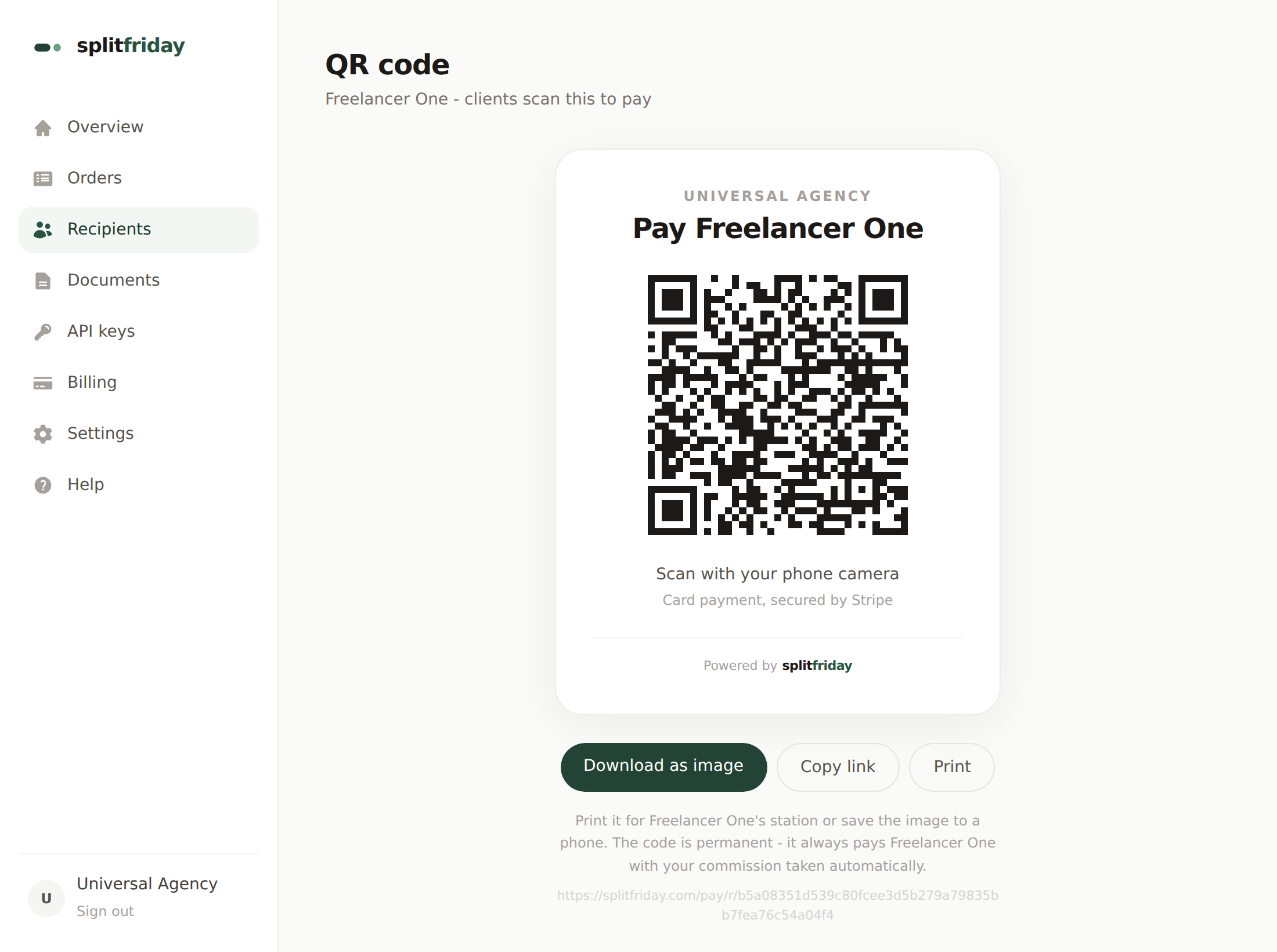
Practical tips from people who run this at a counter:
- Print it around A6 size (a quarter of a normal page) - big enough to scan from across the counter.
- Laminate it or slip it into a plastic stand - it will live next to coffee and card taps.
- The code is permanent. If it fades, gets lost or the laminate dies, print it again - same code, nothing to reconfigure.
Test it with your own phone before anyone else does
Point your phone camera at the printed code. A payment page opens showing your business name and who is being paid, with one amount box. Type a small amount - one euro - and pay with your own card.
You should now see
Camera does not react to the code?
Print bigger or flatten the page - glare and curves are the usual culprits. Any phone from the last several years scans QR codes straight from the camera app, no extra app needed.
What your client sees (so you can explain it in one sentence)
- They scan - a page opens with your business name on it.
- They type the amount you tell them and pay by card, Apple Pay or Google Pay on Stripe's secure payment page.
- They see a confirmation. Done - no app, no account, no signup.
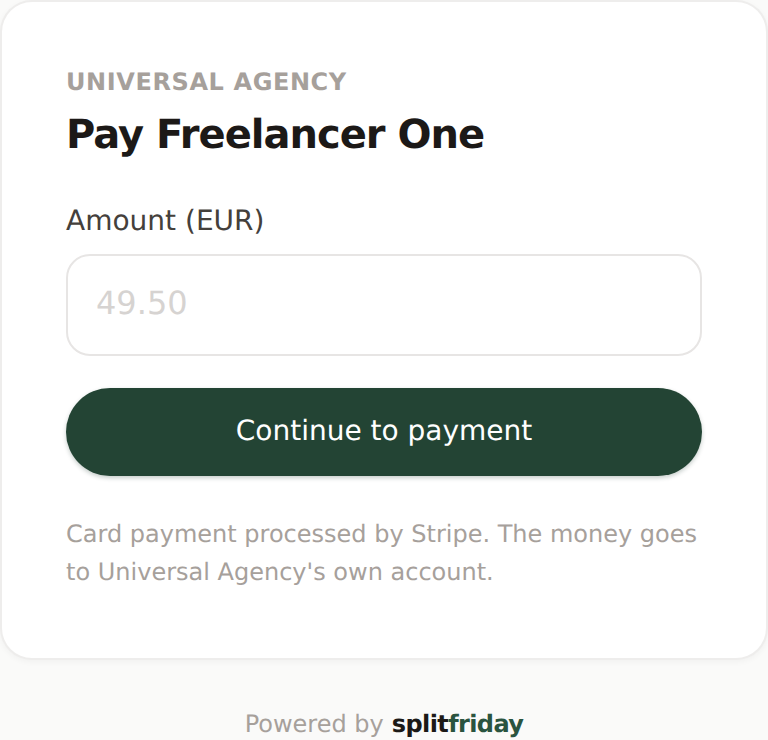
Your one sentence at the counter: "Scan this and type in the amount - card or Apple Pay both work."
Where the money goes
Exactly where every Splitfriday payment goes: into your own Stripe account, split on the spot - the earner's share set aside, your cut kept. The payout waits its hold window and then moves to the earner automatically, and the order joins the monthly paperwork like any other. Nothing about QR payments is a special case.
Next guide
Refunds, holds and payouts
Now that money is flowing: what happens to it day to day, and the two buttons you will actually use.