Setup guide
Add the people you pay
Recipients are your earners - the freelancers, stylists, instructors or partners who get a share of each payment. Adding one takes two minutes; their part takes them a few minutes more. The second half of this page is written FOR them - forward it.
Add them
Open Recipients in the left menu. Fill in their name (as it should appear on payouts and invoices), their email (that is where the invite goes) and their country. Press Add recipient.
You should now see
Invite them to payouts
Press Invite to payouts on their card. They get an email with a secure personal link. Behind that link, Stripe - the payment company - asks them directly for their identity and bank details. You never see or store any of it; that is by design.
Prefer to send the link yourself? Their card shows the onboarding link as text - copy it into WhatsApp or any chat. The link is personal to them and stays valid, so they can finish later on any device.
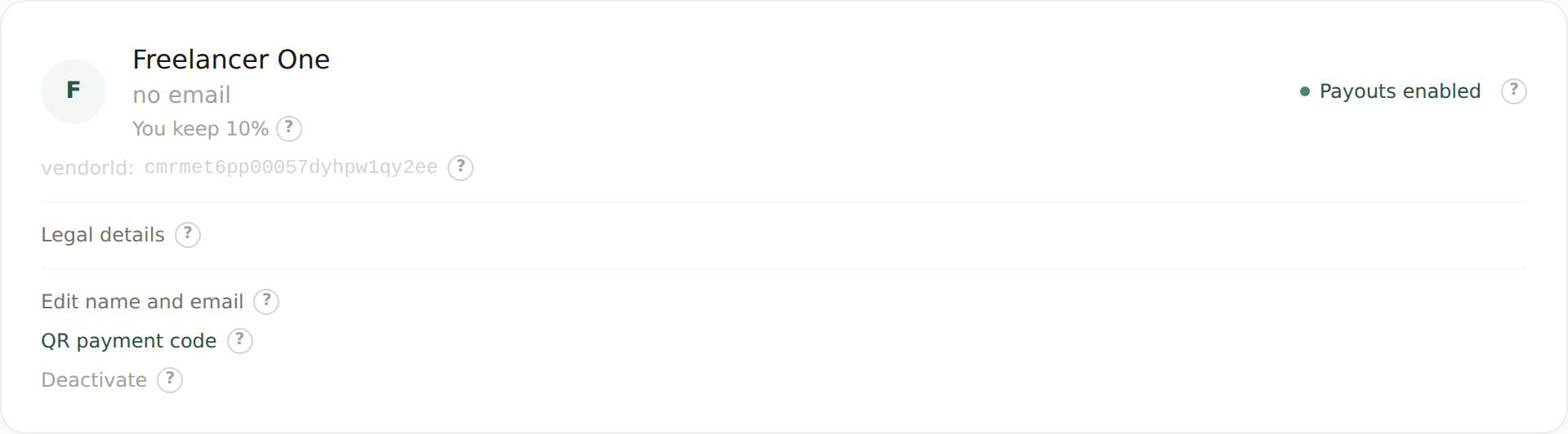
You should now see
Stuck on amber for more than a day?
Almost always it means Stripe asked them for one more thing - a clearer photo of the ID, or a missing detail. Ask them to open their link again; it resumes exactly where they stopped and shows what is still needed.
Know what the dots mean
- Grey - Not invited yet. They exist in your list but cannot receive money.
- Amber - Onboarding in progress. Invited, not finished. You can already take payments that include them - their share simply waits safely in your Stripe until they finish.
- Green - Payouts enabled. Fully set up. Their share moves to them automatically on schedule.
Later: legal details, pauses, leavers
On each card you can also open Legal details - business code, VAT number, tax id. You do not need any of it to pay people; it is for the paperwork Splitfriday generates (commission invoices, annual statements, EU reporting). Fill it in when your accountant asks, or let the recipient details stay minimal until then.
When someone stops working with you, deactivate them: they stop appearing in new orders, but any money already owed to them still flows normally. Nothing is ever lost by deactivating.
Forward this part to your earners
Getting paid through Splitfriday - what to expect
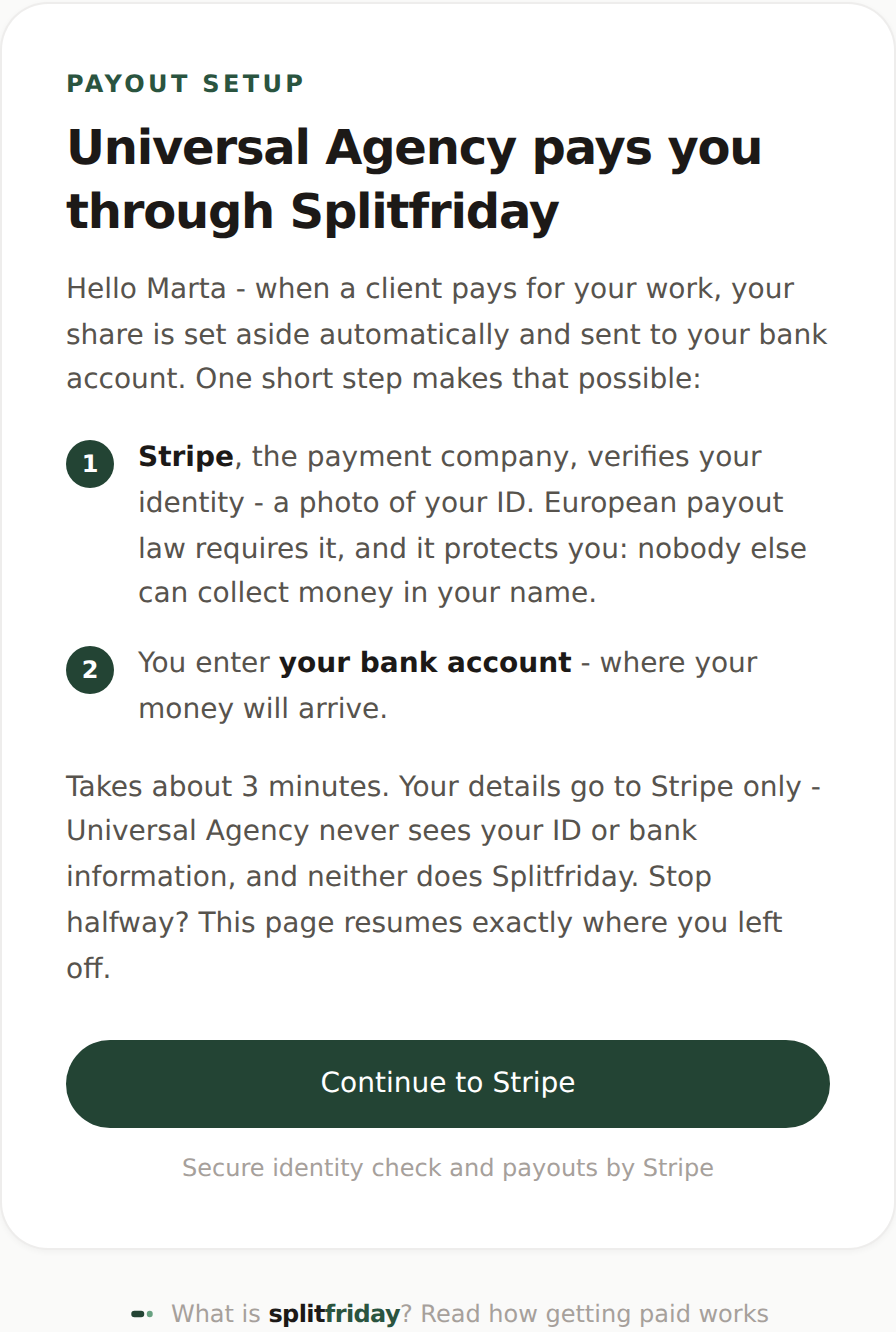
A business you work with uses Splitfriday to pay you your share of each job automatically - no invoicing them, no chasing. Before the first payout can reach you, one short step:
You will get an email with a personal link. It opens a page run by Stripe, one of the world's largest payment companies - the same company behind the card payments of millions of businesses. Stripe asks for:
- Your identity (a photo of your ID) - required by European anti-money-laundering law for anyone receiving payouts. It protects you: nobody else can collect money in your name.
- Your bank account - where your money will arrive.
It usually takes about three minutes. Your details go to Stripe only - the business paying you never sees your ID or bank information, and neither does Splitfriday.
After that, everything is automatic: when a client pays for your work, your share is set aside immediately and lands in your bank account on schedule. You get a short email each time you are paid, and once a year a statement of your earnings for your taxes. Nothing to install, nothing to log into.
Stopped halfway? Open your link again - it continues exactly where you left off.
Next guide
Take payments with a QR code
Your earners are in - give each one a code their clients can scan and pay.